

Email Account setup in Apple Mail on iPhone (iOS 18)
Follow these steps to configure your email account using the default Mail app on your iPhone running iOS 18.
✅ Step-by-Step Setup Guide
Step 1: Open the Settings App
Go to your iPhone’s Home screen, and tap Settings.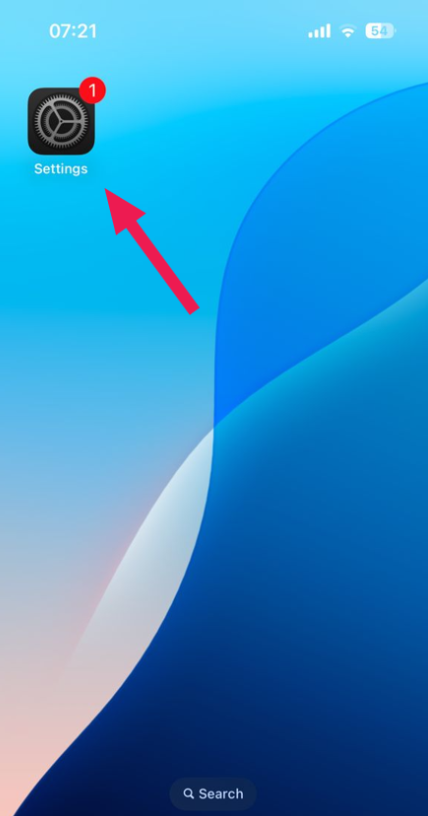
Step 2: Go to Settings > Apps
Scroll down and tap Apps (if available). If not, proceed directly to Mail in the Settings list.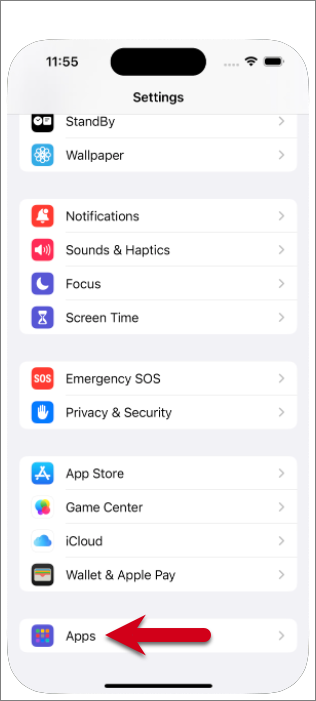
Step 3: Tap Mail
Tap the Mail app under Apps.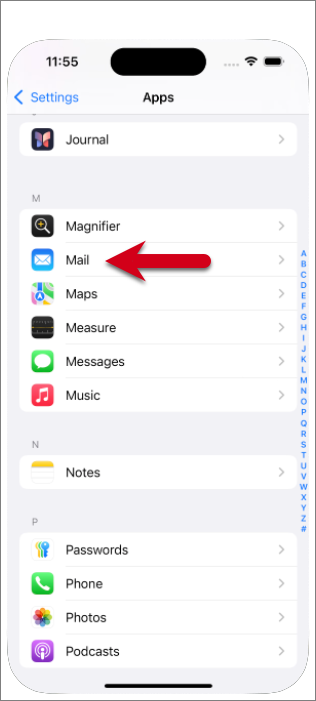
Step 4: Tap Mail Accounts
Tap Mail Accounts to manage your mail accounts.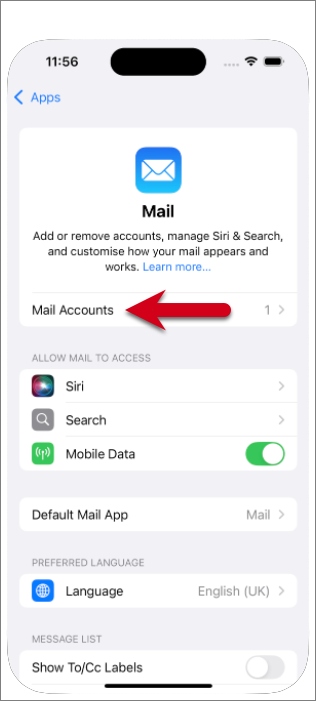
Step 5: Tap Add Account
Tap Add Account to begin adding a new email account.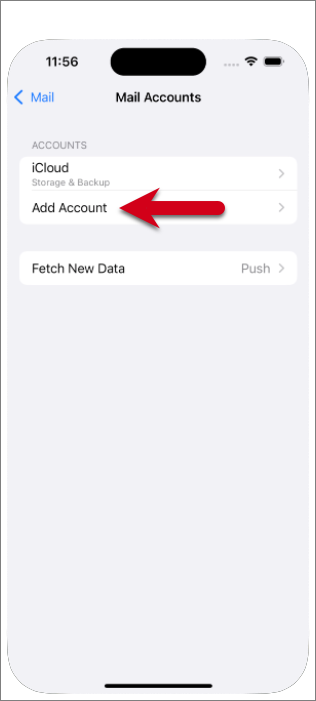
Step 6: Tap Other
From the list of available account types, tap Other.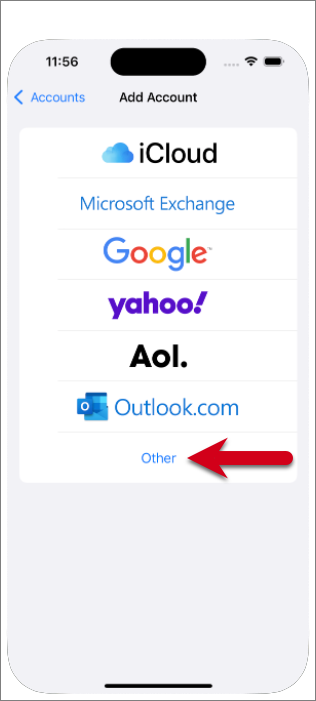
Step 7: Tap Add Mail Account
Tap Add Mail Account at the top of the screen.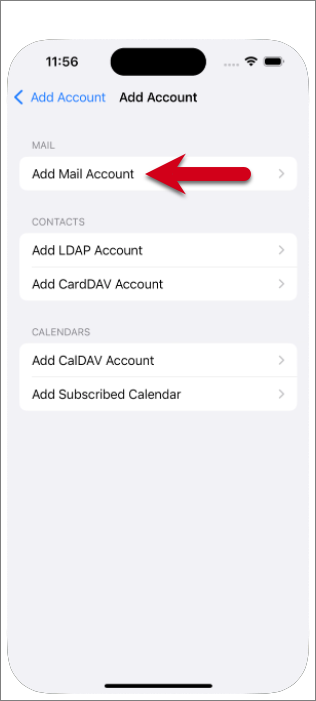
Step 8: Enter Your Account Details
Fill in the following fields:
-
Name: Your display name (e.g., John Doe)
-
Email: Your full email address
-
Password: Your Webmail password
-
Description: A name to identify this account on your device
Then tap Next.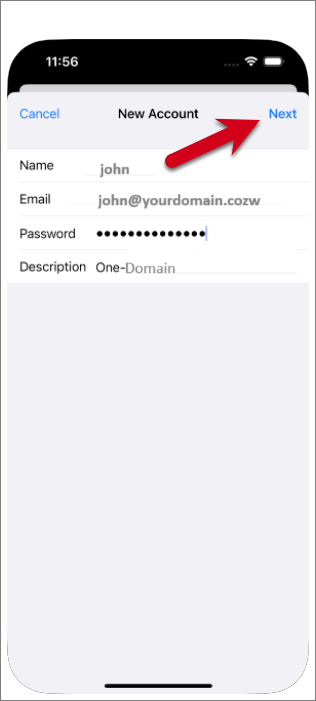
Step 9: Select IMAP
Make sure IMAP is selected.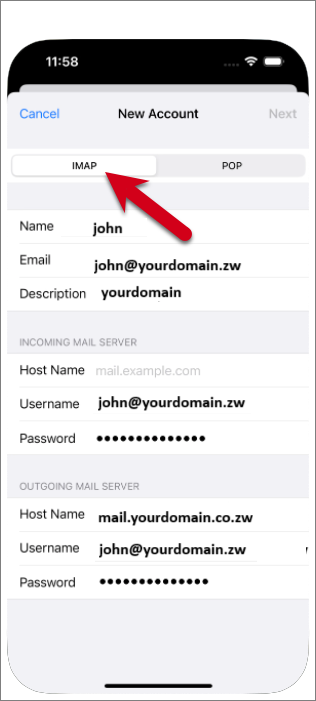
Step 10: Enter Server Settings
Incoming Mail Server:
-
Host Name:
mail.yourdomain.co.zw -
Username: your full email address
-
Password: your password
Outgoing Mail Server:
-
Host Name:
mail.yourdomain.co.zw -
Username: your full email address
-
Password: your password
⚠️ Note: Even if labeled optional, the username and password are required for the outgoing mail server.
Tap Next in the upper-right corner.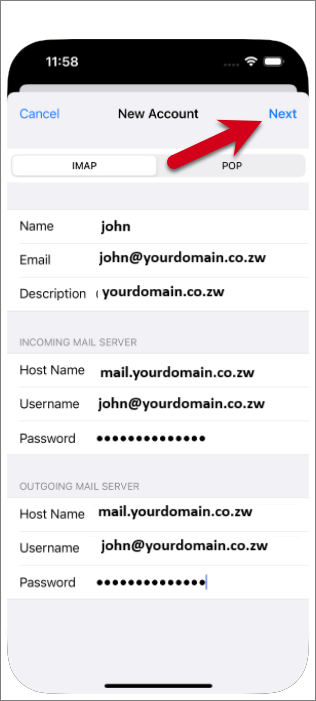
Step 11: Tap Save
Disable syncing of Notes (toggle should be grey), then tap Save.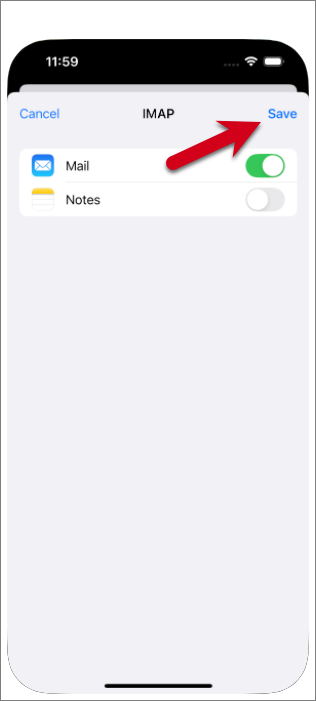
Step 12: Tap the Account You Added
Tap on the newly added account. It will appear with the description you entered earlier.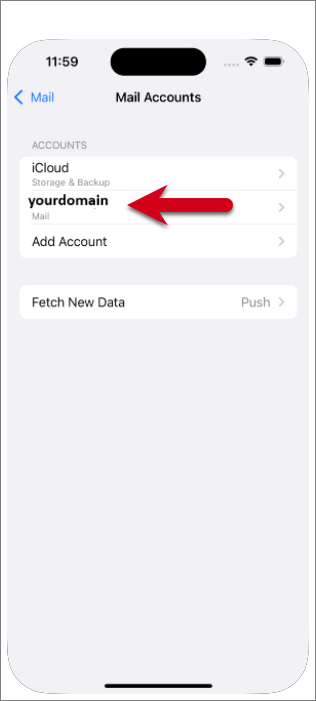
Step 13: Tap Account Settings
Tap Account Settings.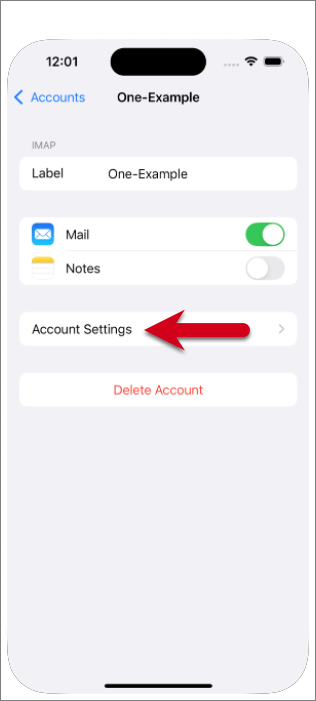
Step 14: Tap Advanced
Scroll to the bottom and tap Advanced.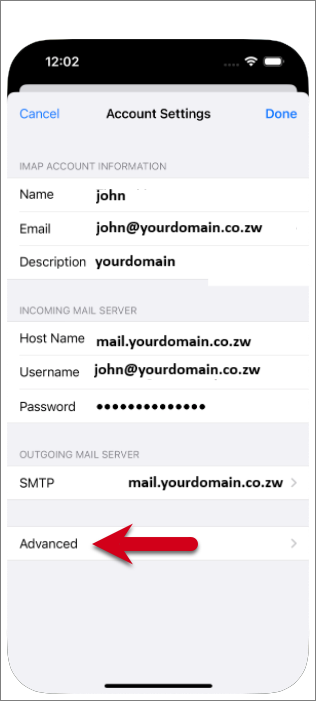
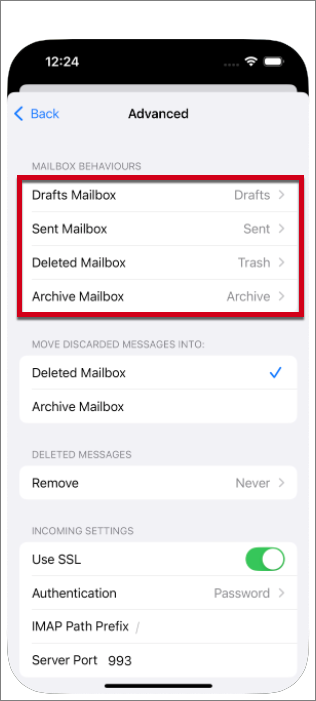
Step 15: Configure Mailbox Behaviours
Ensure the correct server folders are selected:
-
Drafts Mailbox:
Drafts -
Sent Mailbox:
Sent -
Deleted Mailbox:
Trash -
Archive Mailbox:
Archive
Tip: If a folder is not visible, log in to Webmail, move an email into that folder, then return to Mail settings and try again.
Step 16: Set IMAP Path Prefix
Scroll down and enter INBOX (all uppercase) as the IMAP Path Prefix.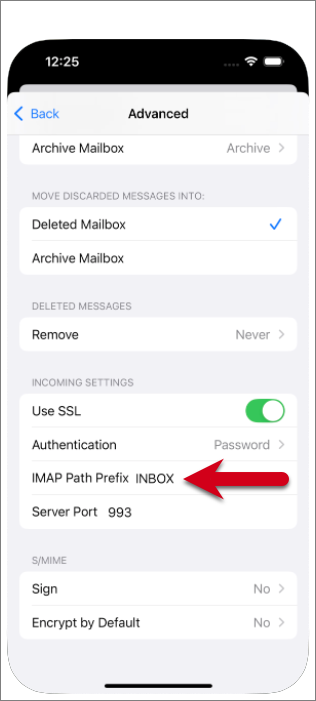
Step 17: Tap Back and Then Done
Tap the Back arrow in the upper-left corner, then tap Done to finish setup.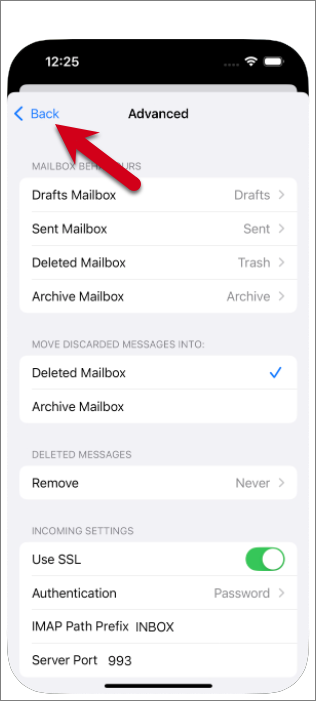
✅ You're All Set!
Your email account is now successfully configured in the Apple Mail app on your iPhone.