
Client Area Two-Factor Authentication (2FA) Setup Guide :
1. Two-Factor Authentication Requirements
Before initiating login or configuring Two-Factor Authentication, clients must ensure they have:
- A mobile smartphone or tablet.
- A supported authenticator application installed (e.g., Google Authenticator, 2FAS, or Authy).
- Active Webdev Client Portal login credentials (Email address & Password).
2. Standard Client 2FA Setup Workflow
Step 1: Access Client Portal
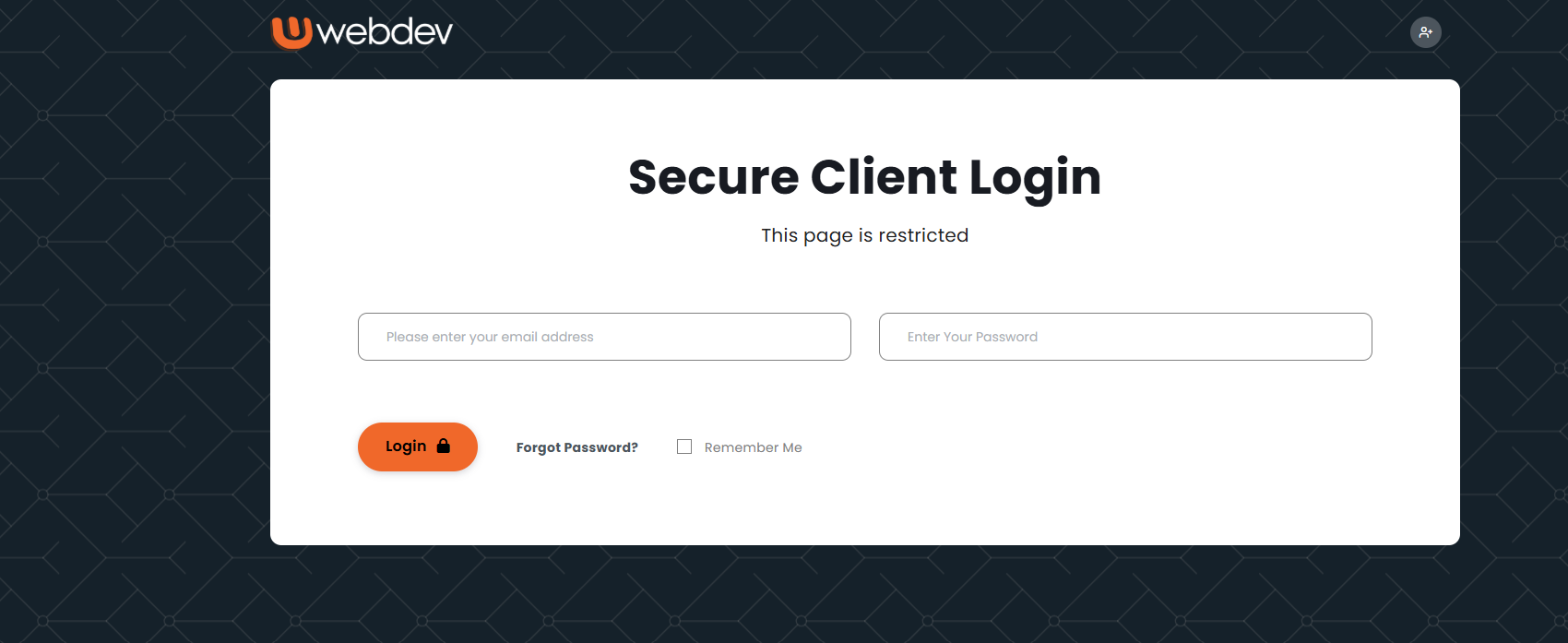
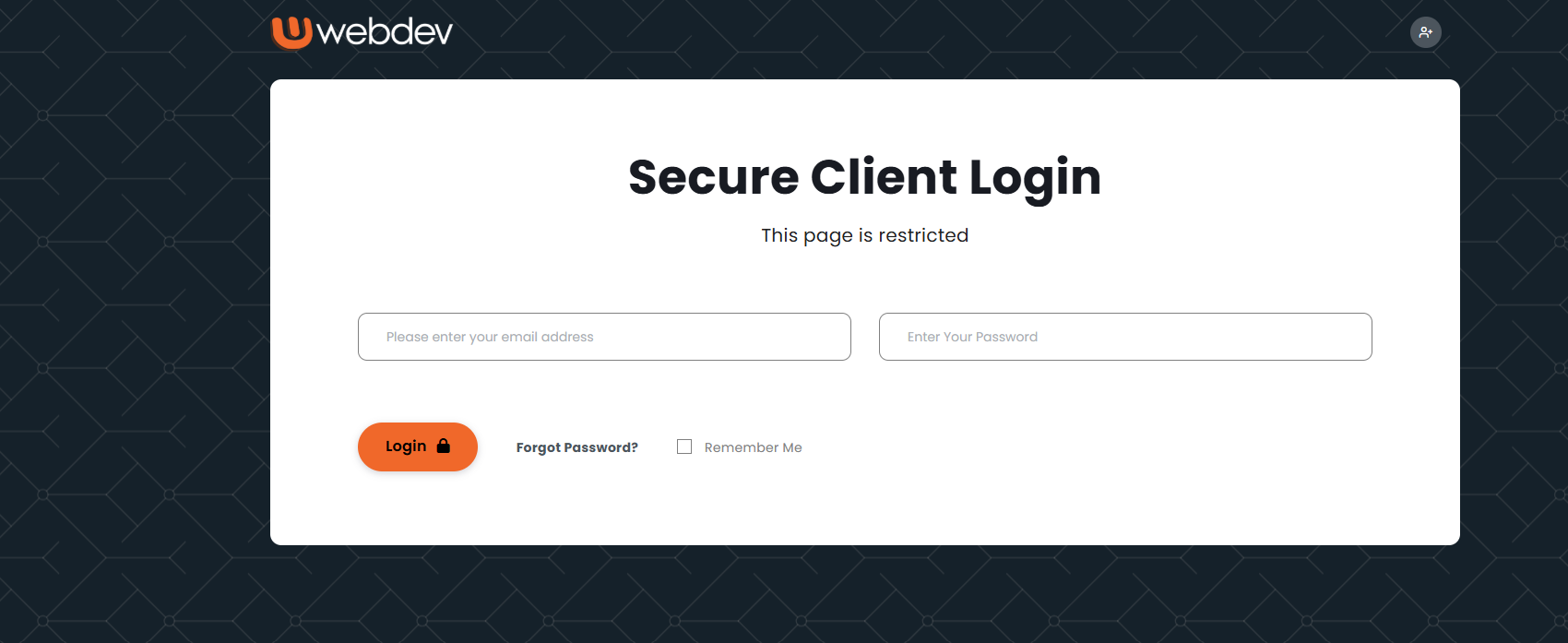
- Navigate to the Webdev WHMCS Client Area login page and enter your registered email address and password, then click 'Login'. : https://www.webdev.co.zw/index.php?rp=/login
Step 2: Enable 2FA
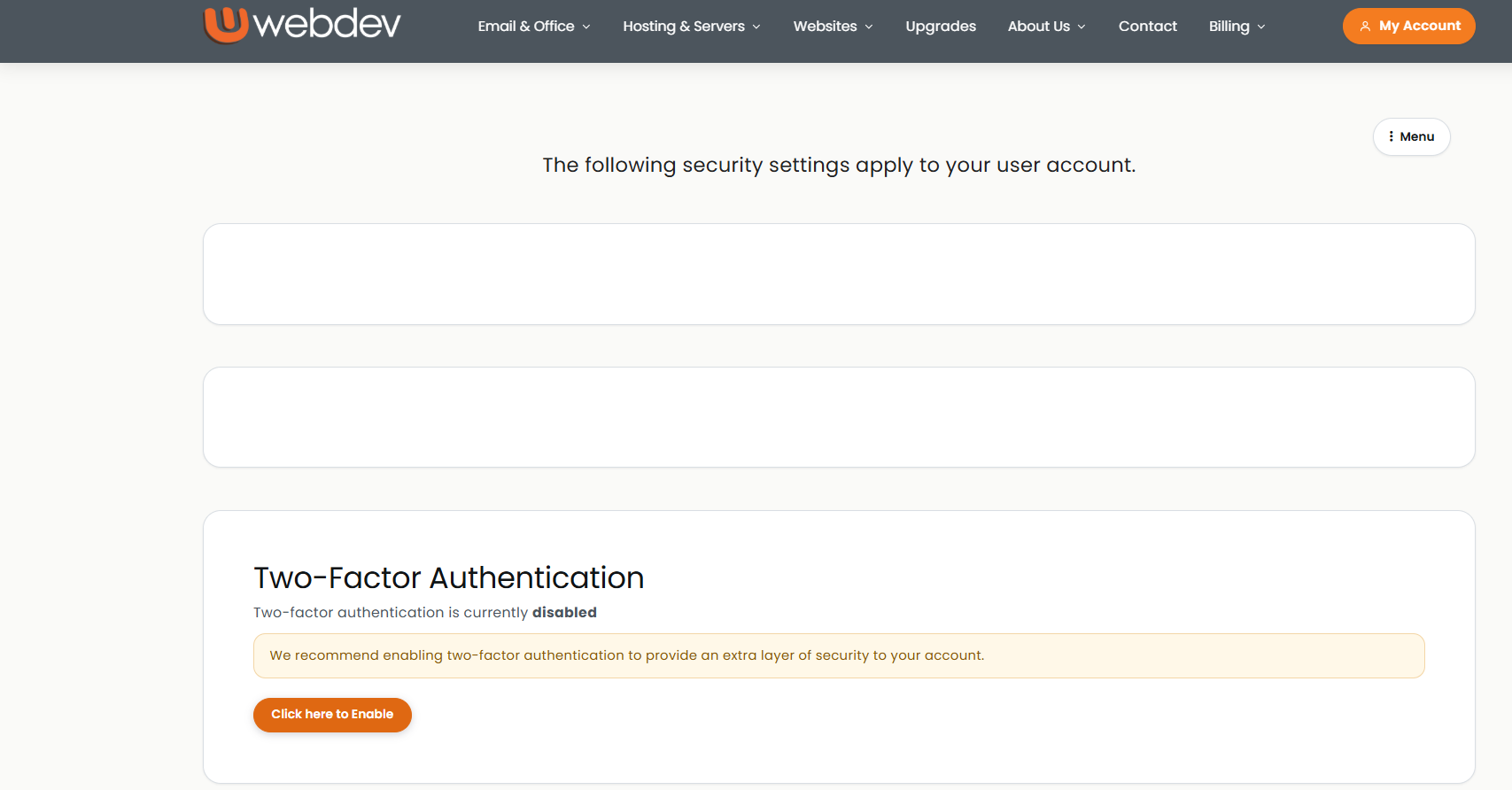
- Once logged in, a security page will be visible asking you to enable Two-Factor Authentication for your account. Under the Two-Factor Authentication section, click 'Click here to Enable'.
Step 3: Select Authentication Method
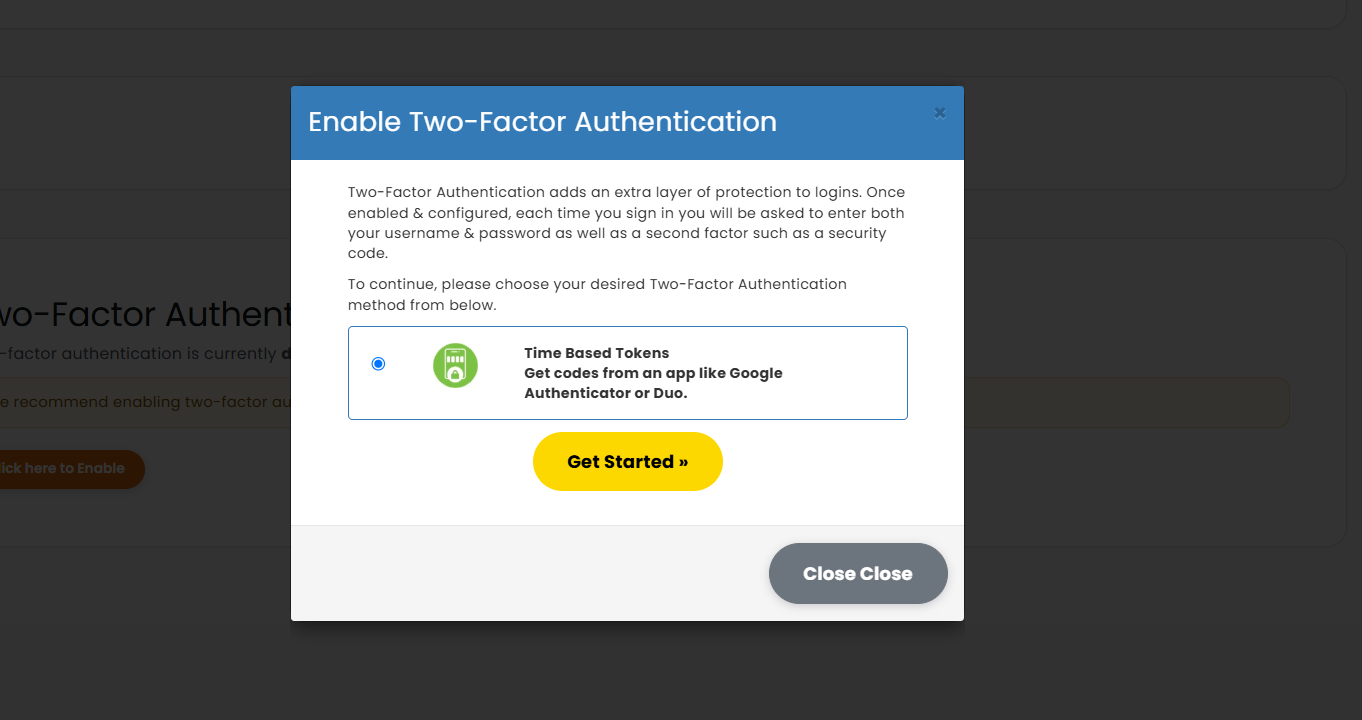
- Select 'Time Based Tokens' (Get codes from an app like Google Authenticator or Duo) and click 'Get Started »'.
Step 4: Scan QR Code or Enter Setup Key
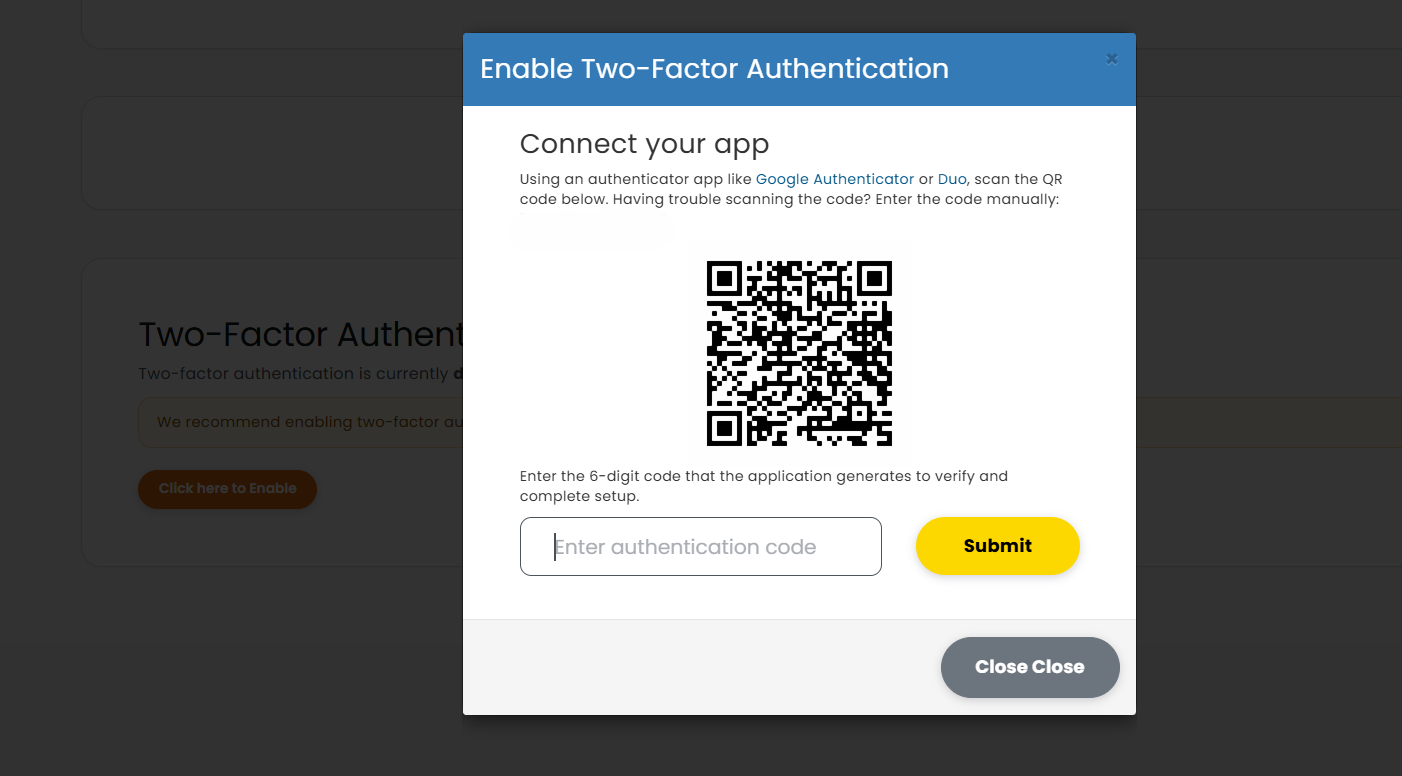
- Open your phone and download the Google Authenticator from either Google Play Store or Apple Store.Once you have finished downloading the application open it.
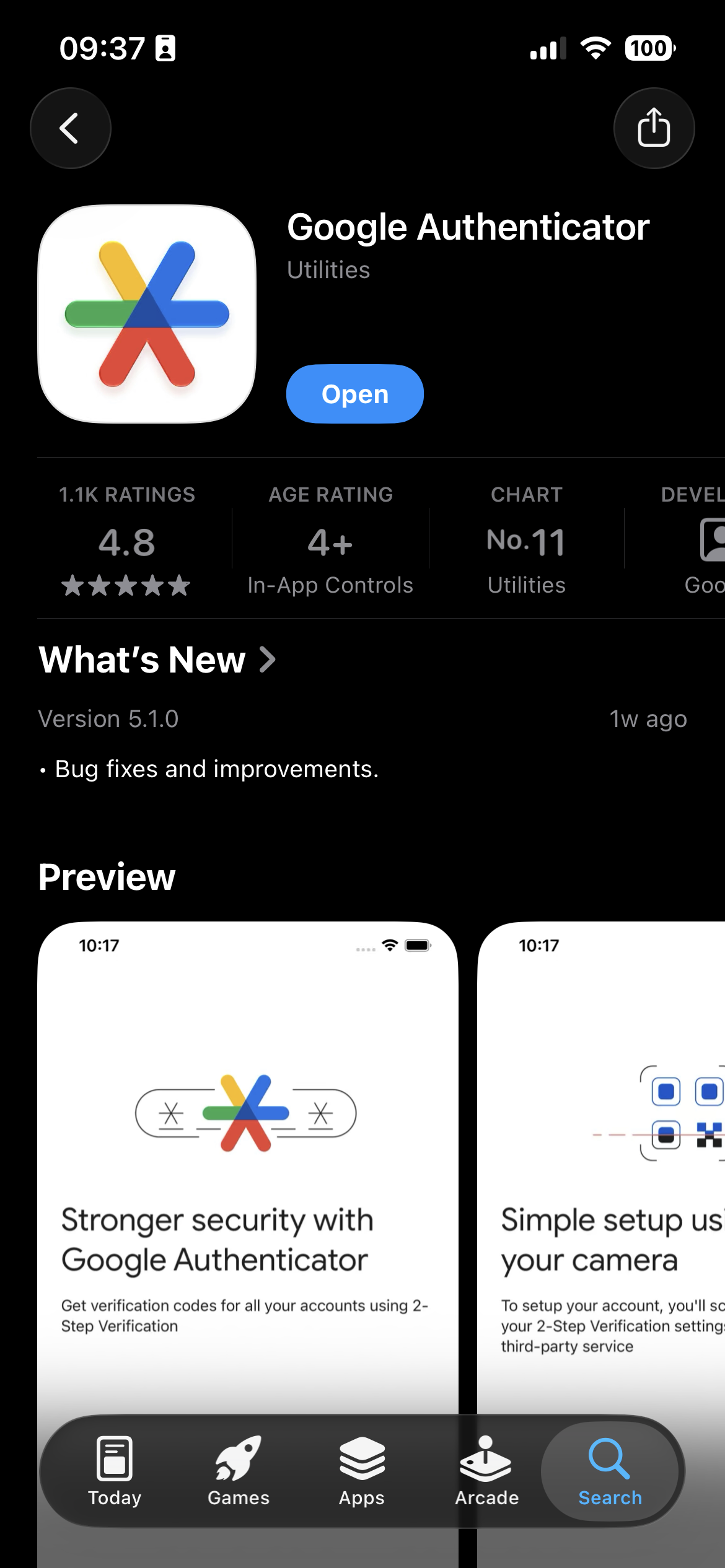
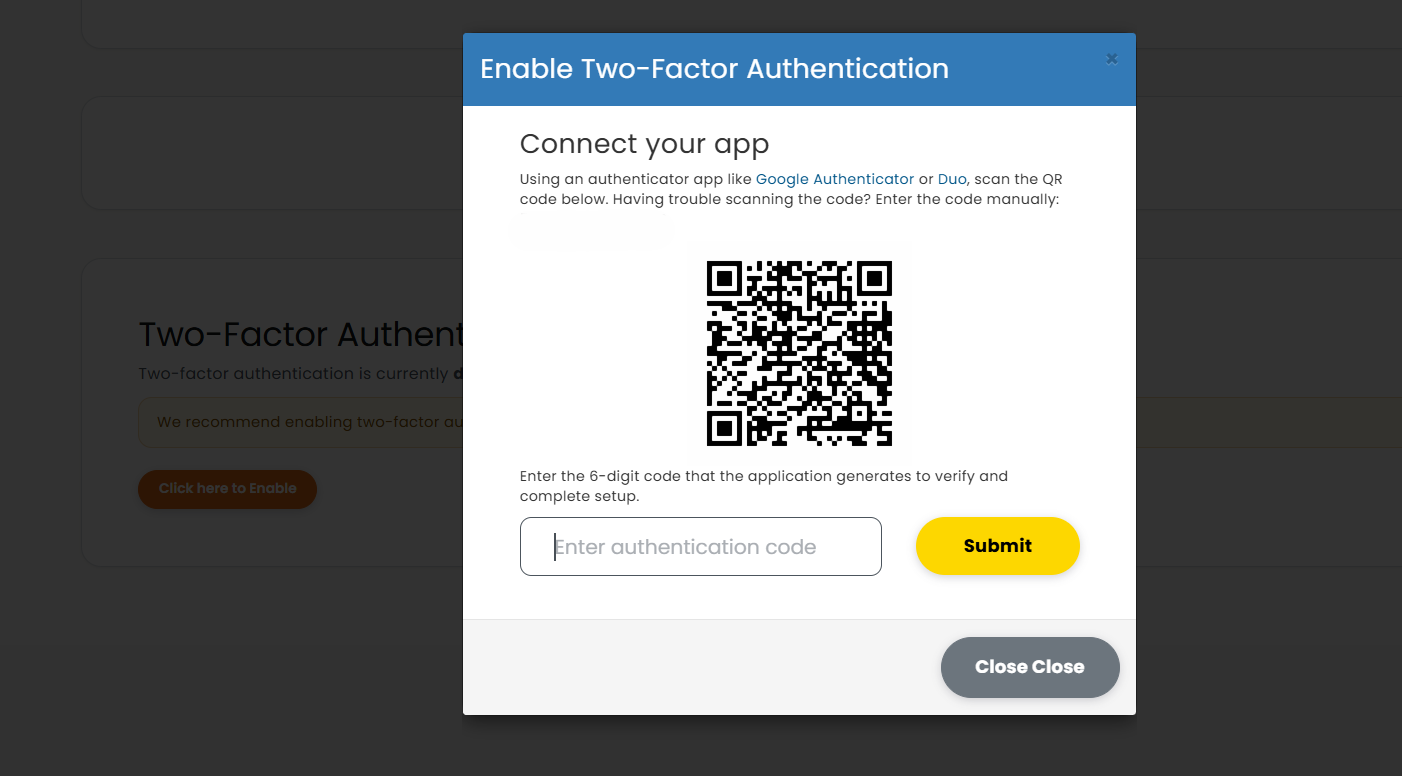
In the Authenticator Application tap the '+' button and select 'Scan a QR code' or 'Enter a setup key'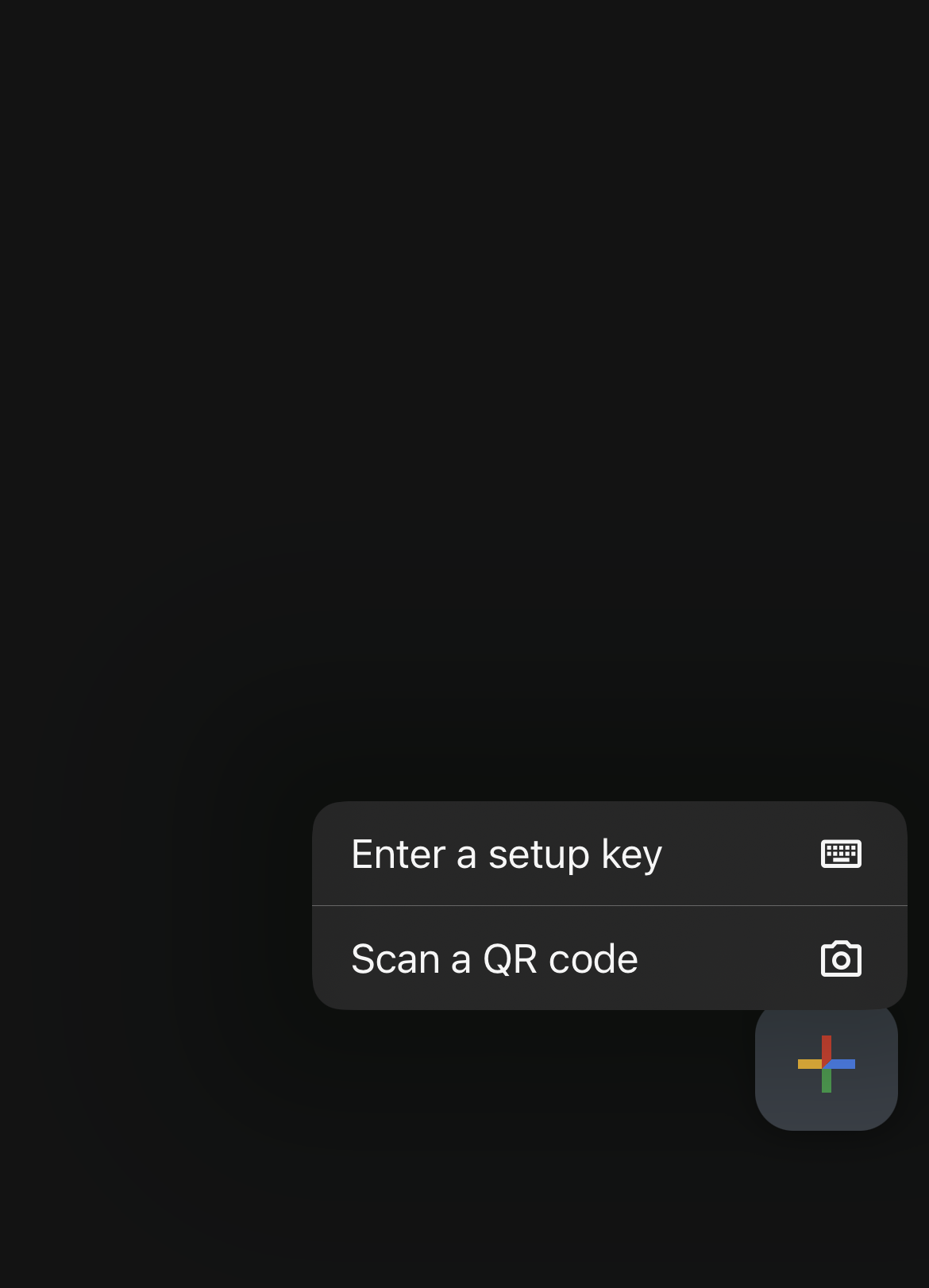
Scan the QR code displayed on the Client Area screen. If you cannot scan the code, manually enter the provided Secret Key into the app.