How to Reset Your Email Account Password in Webmail
Follow the steps below to change your email password in Webmail.
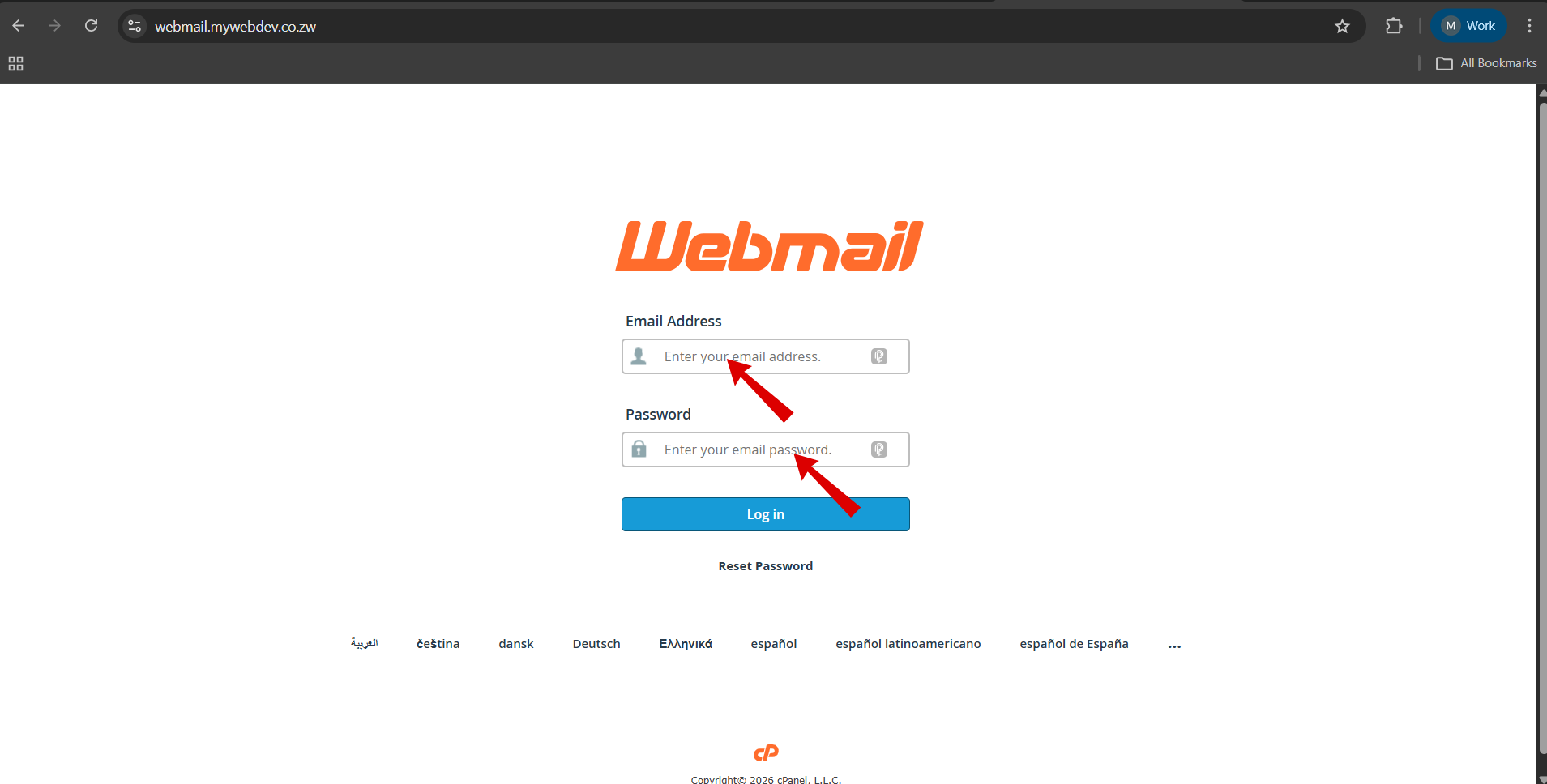
Step 1: Access Webmail
Open your browser and go to:
https://webmail.yourdomain.co.zw

Replace mywebdev.co.zw with your actual domain name.
Step 2: Enter your full email address (e.g., [email protected]) and your current password, then click Log in.
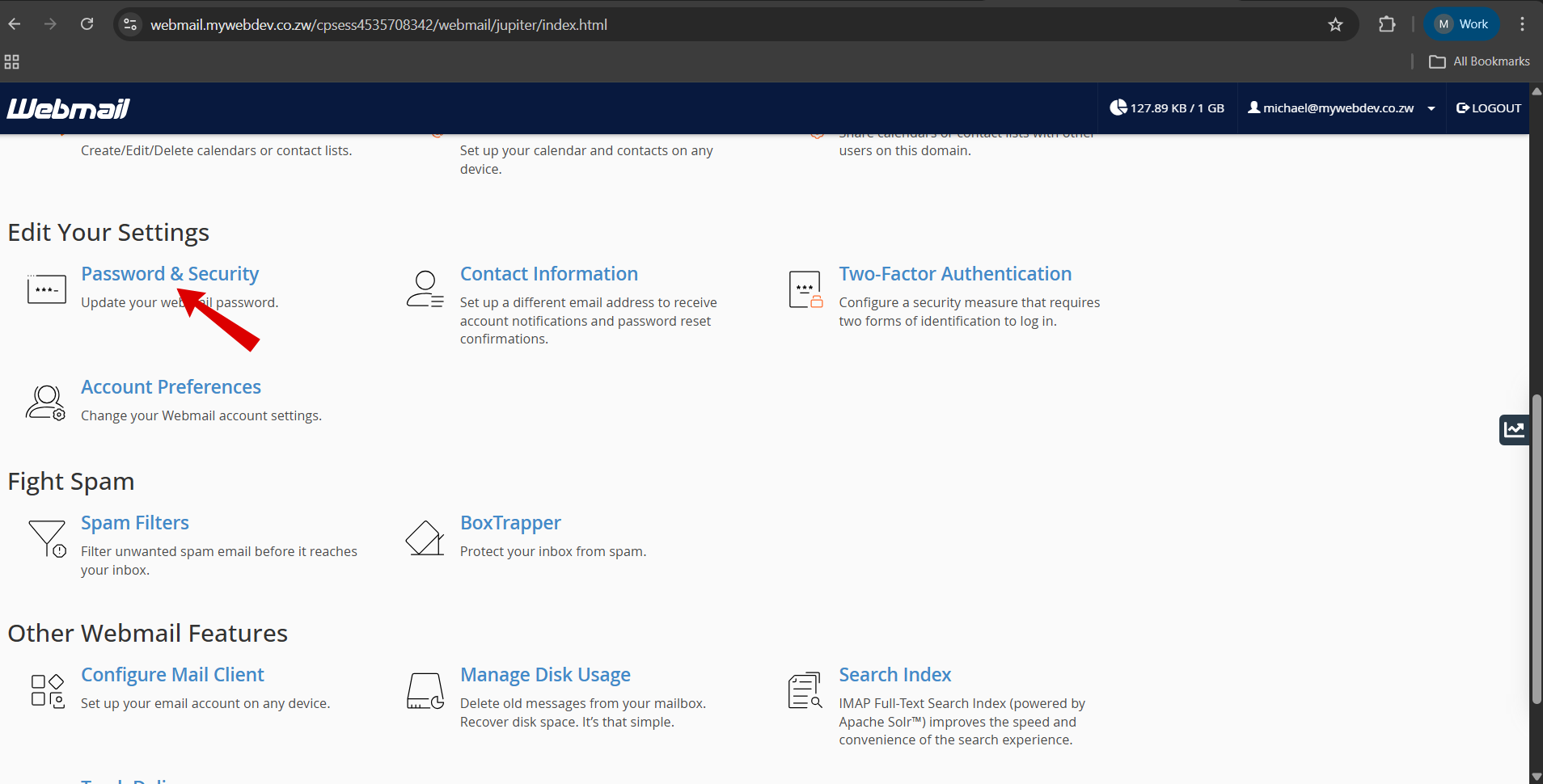
Step 3: When logged in successfully scroll down to "Edit Your Settings" section and select "Password & Security"
Step 4: Set a New Password
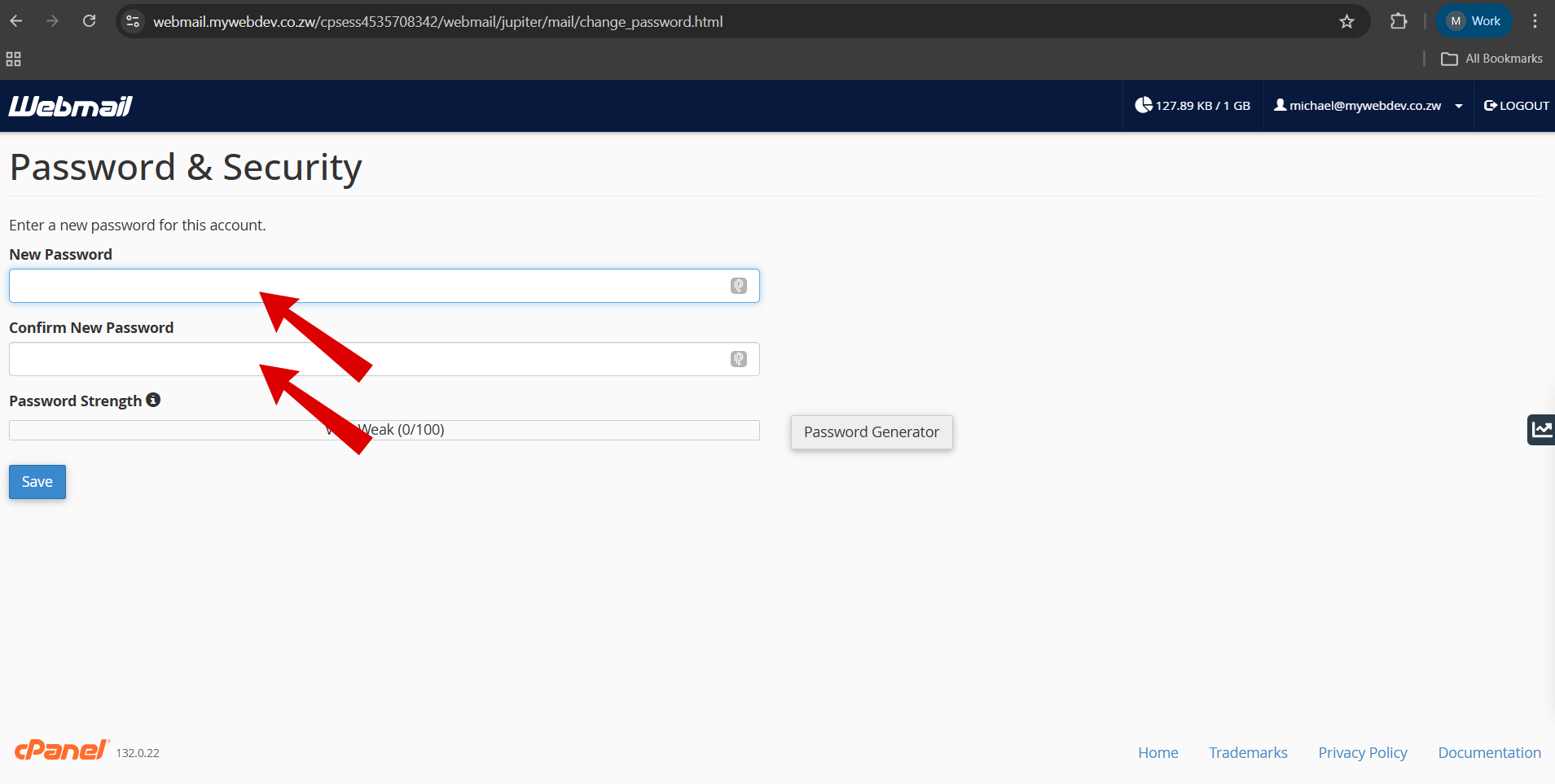
Enter your new password in the New Password field.
Re-enter it in Confirm New Password.
Ensure the password strength shows Strong or Very Strong. Your password should be at least 10 characters long and include a mix of uppercase letters, lowercase letters, numbers, and special characters to make it secure and difficult to guess.
You may use the Password Generator if needed.
Step 5: Save Changes
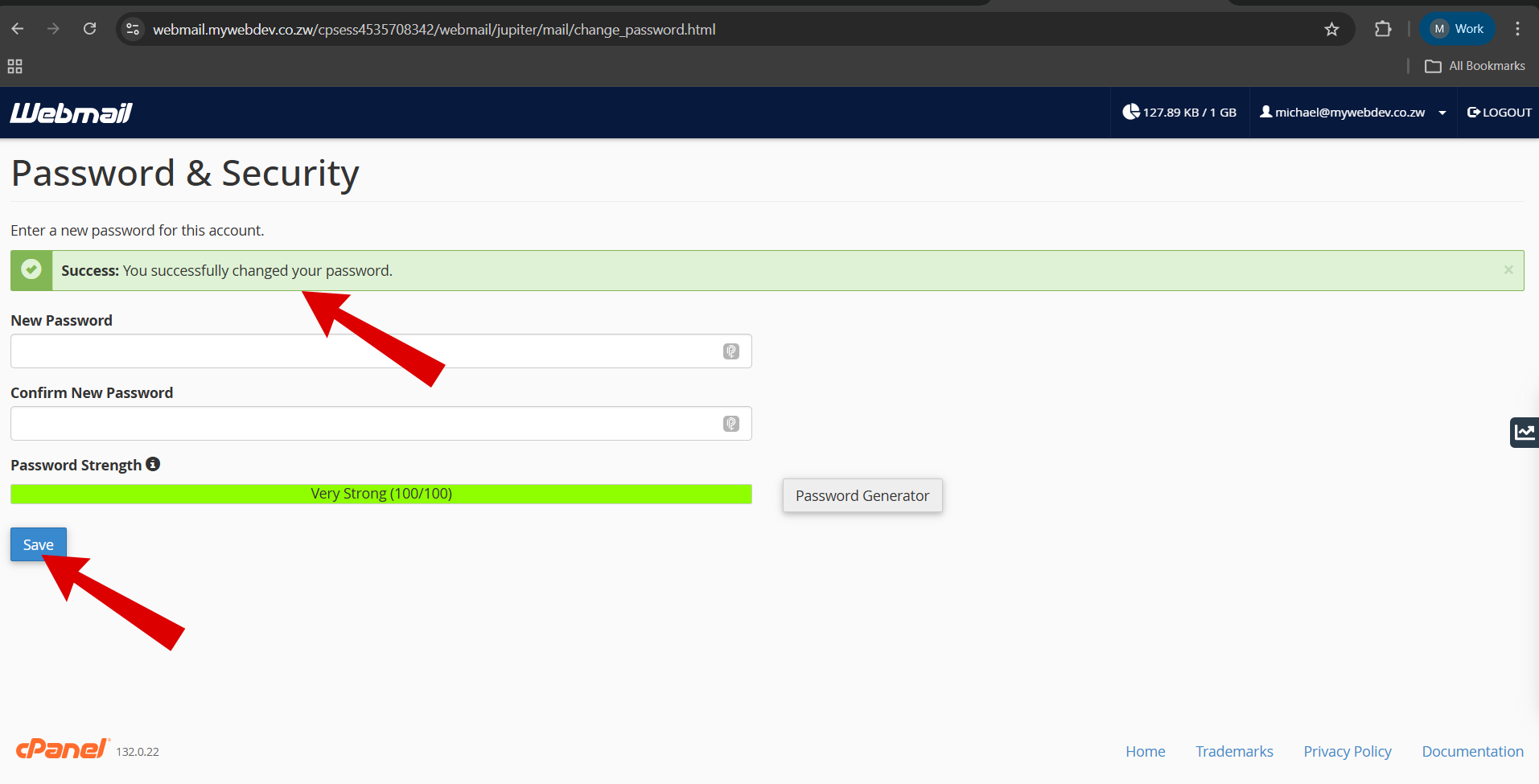
Click Save.
A confirmation message will appear:
“Success: You successfully changed your password.”
Your password has now been updated.