Changing (Renaming) an Email Account in cPanel
Purpose
To guide administrators on how to change an email account name in cPanel.
⚠️ Note: cPanel does not support direct renaming of email accounts. The process involves creating a new account and migrating data.
Scope
This applies to all cPanel hosting accounts where email accounts are managed via Email Accounts.
Procedure
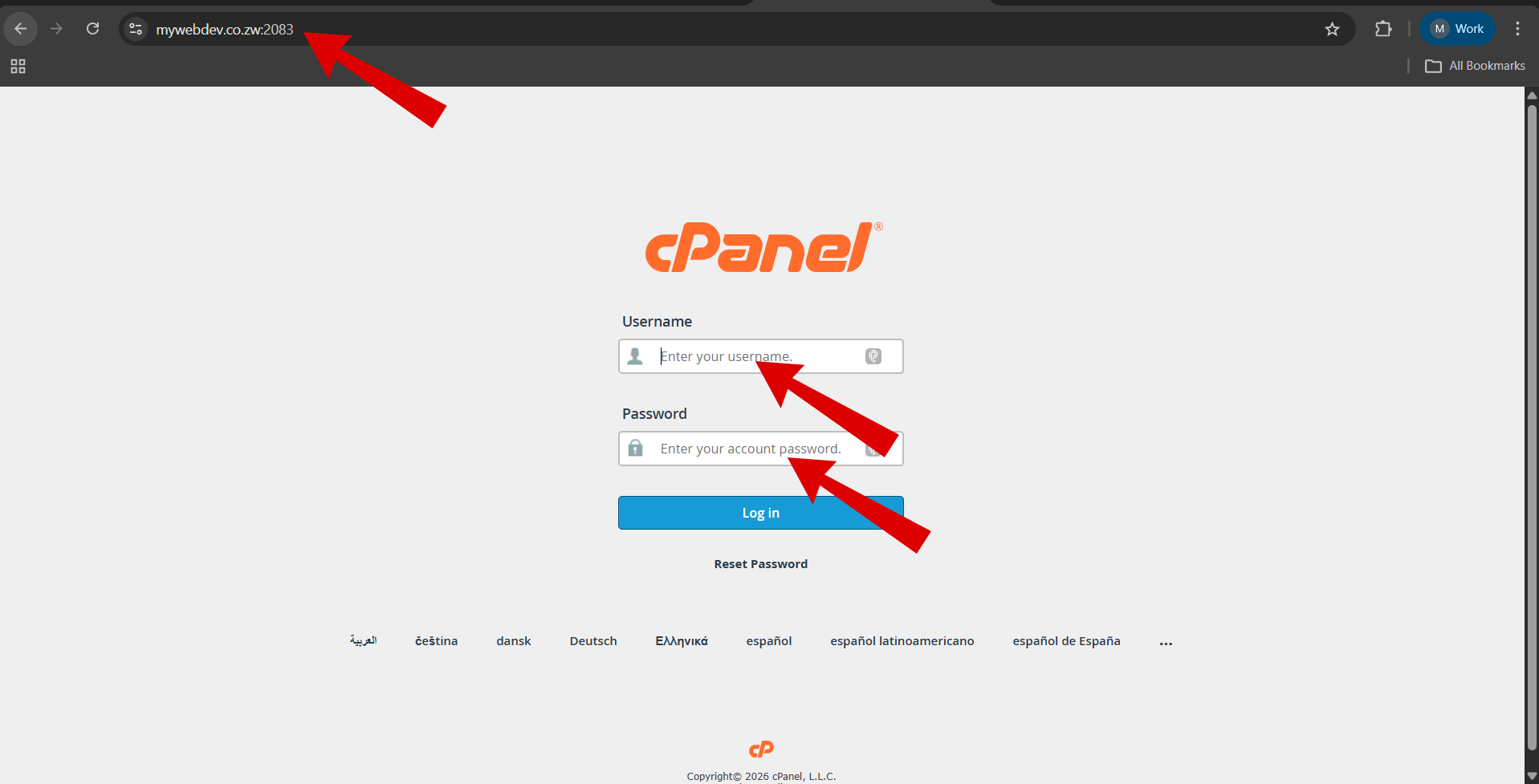
Step 1: Access cPanel
-
Open your browser
-
Go to:
https://yourdomain:2083Example:
-
Log in using your cPanel credentials
Step 2: Navigate to Email Accounts
-
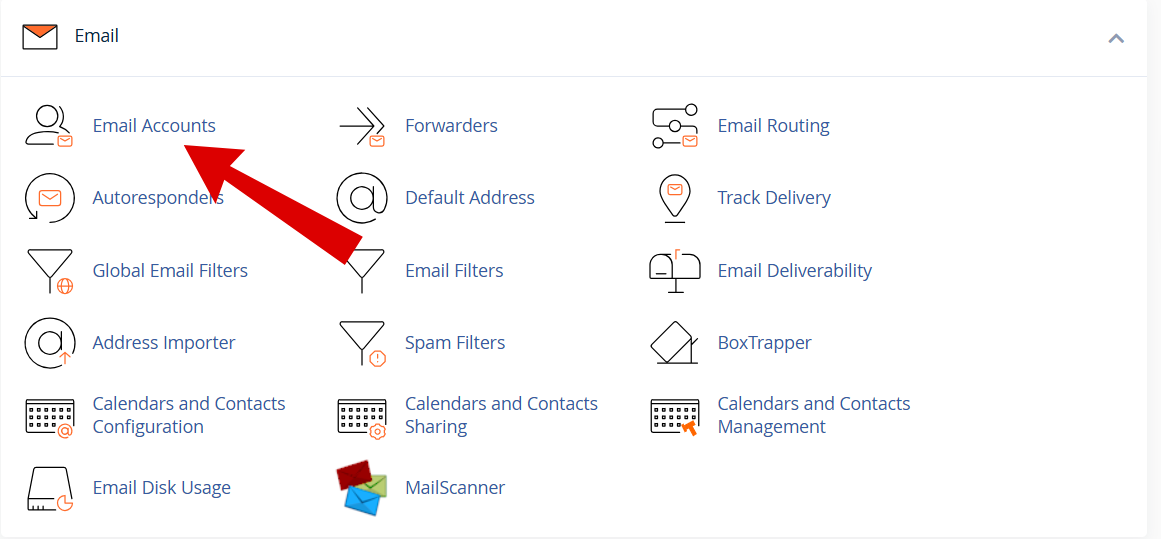
Scroll to the Email section
-
Click Email Accounts
Step 3: Create the New Email Account
-
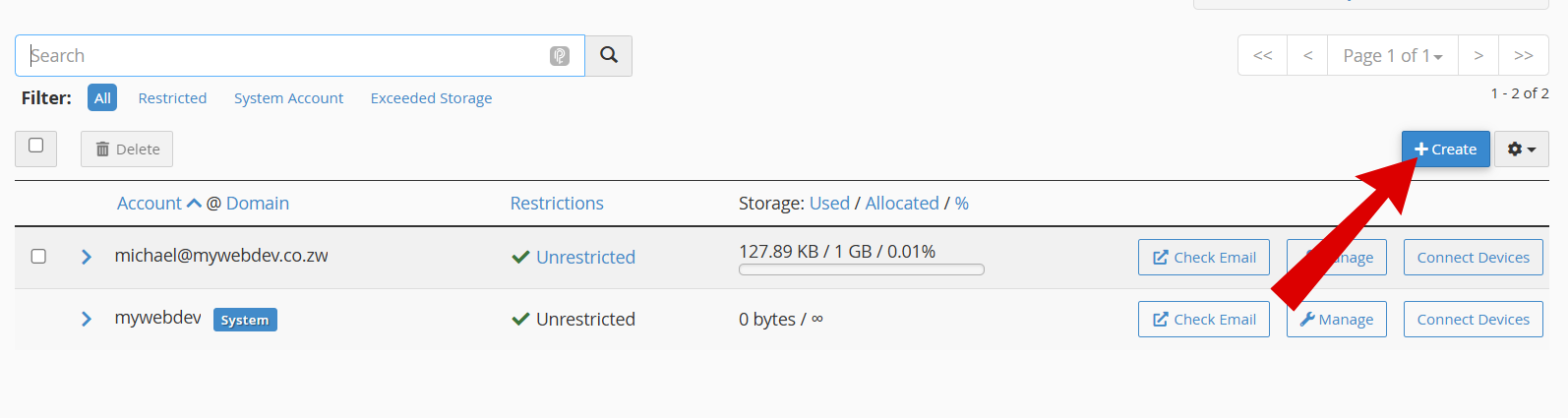
Click + Create
-
Enter the new email username (e.g.,
panashe)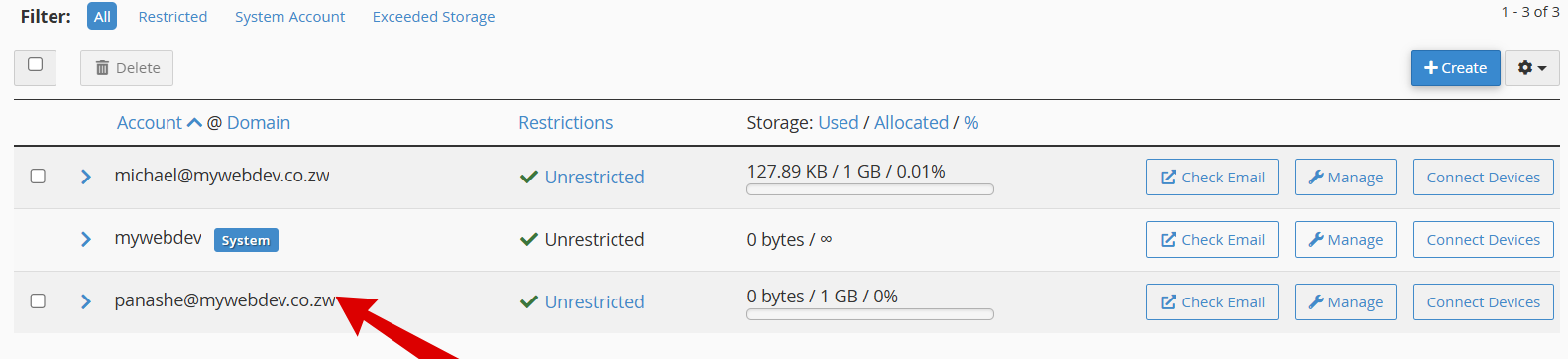
✅ You have now created the new email account
Step 4: Prepare Mailbox for Migration
-
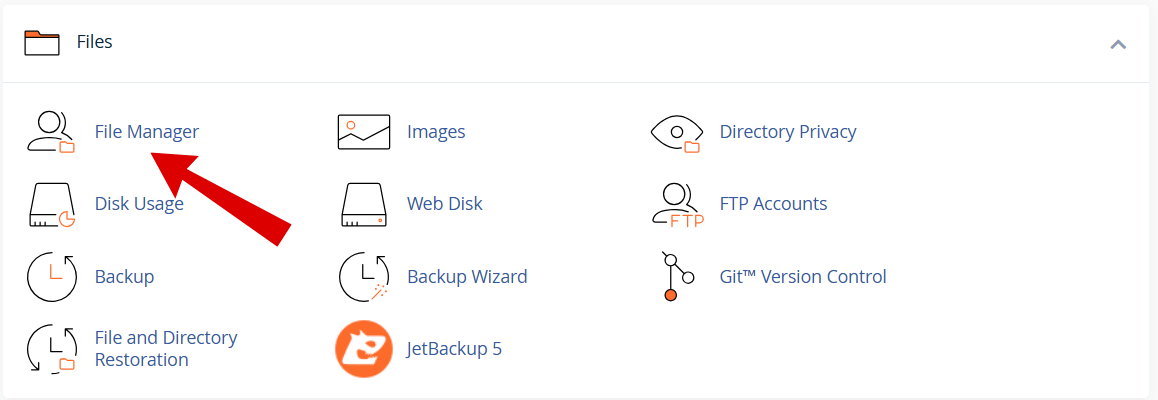
Go to File Manager
-
Navigate to:
/home/username/mail/domain/Example:
/mail/mywebdev.co.zw/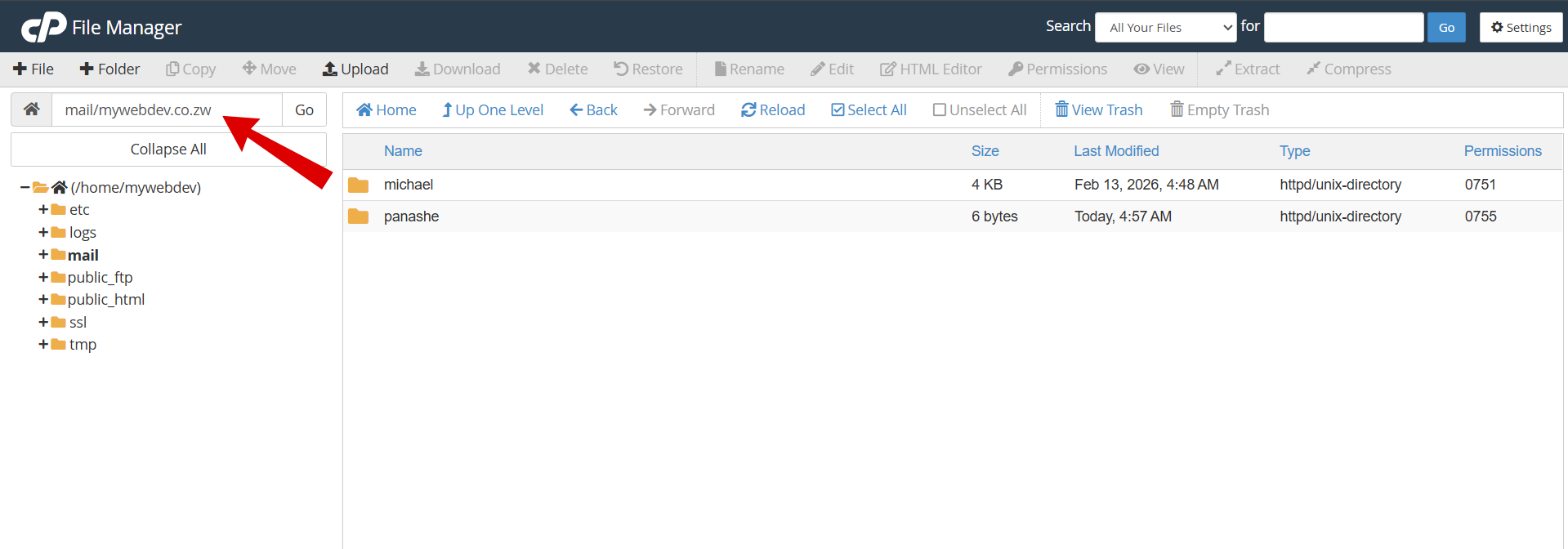
-
Confirm both folders exist:
-
Old account (e.g.,
michael) -
New account (e.g.,
panashe)
-
Step 5: Copy Email Data
-
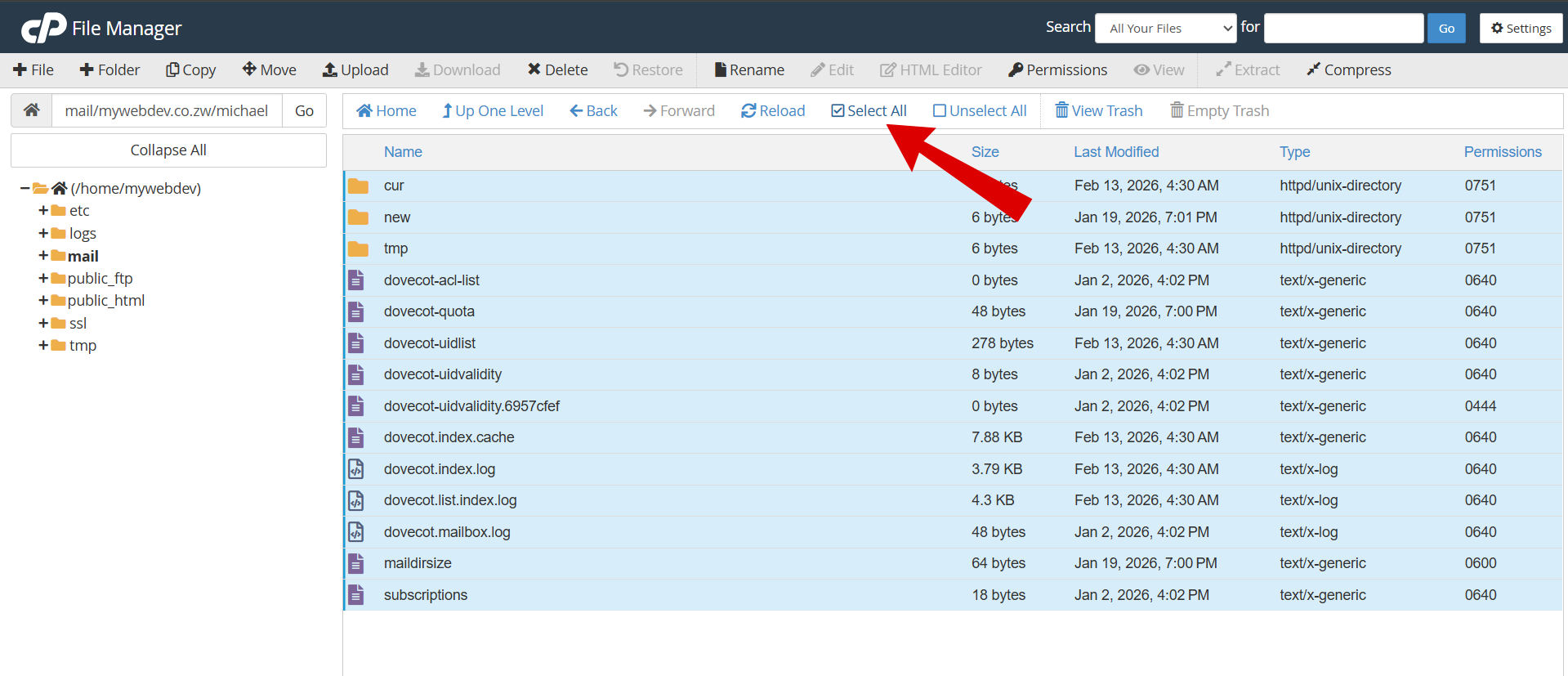
Open the old email folder (e.g.,
michael) -
Select all files and folders:
-
cur -
new -
tmp -
and all dovecot files
-
-
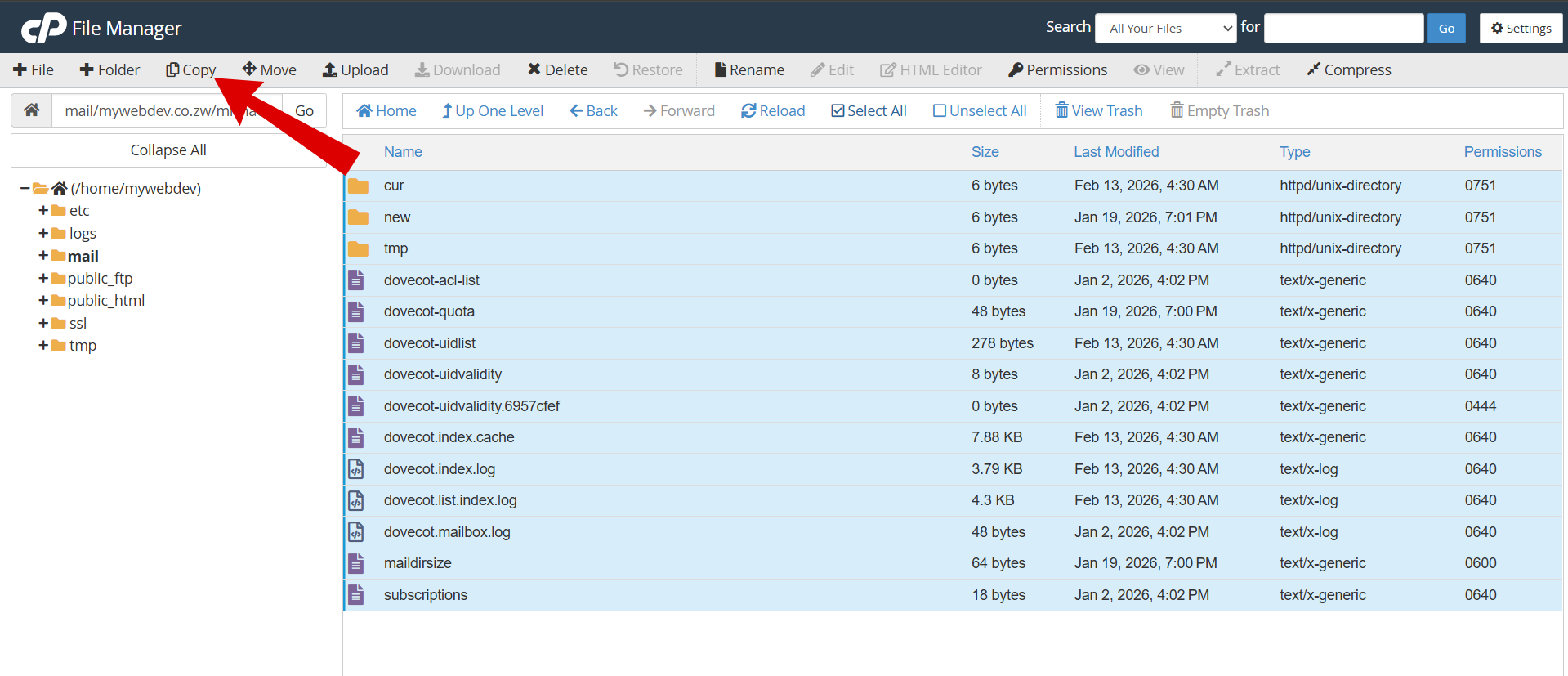
Click Copy
-
Enter destination:
/mail/domain/newemail/Example:
/mail/mywebdev.co.zw/panashe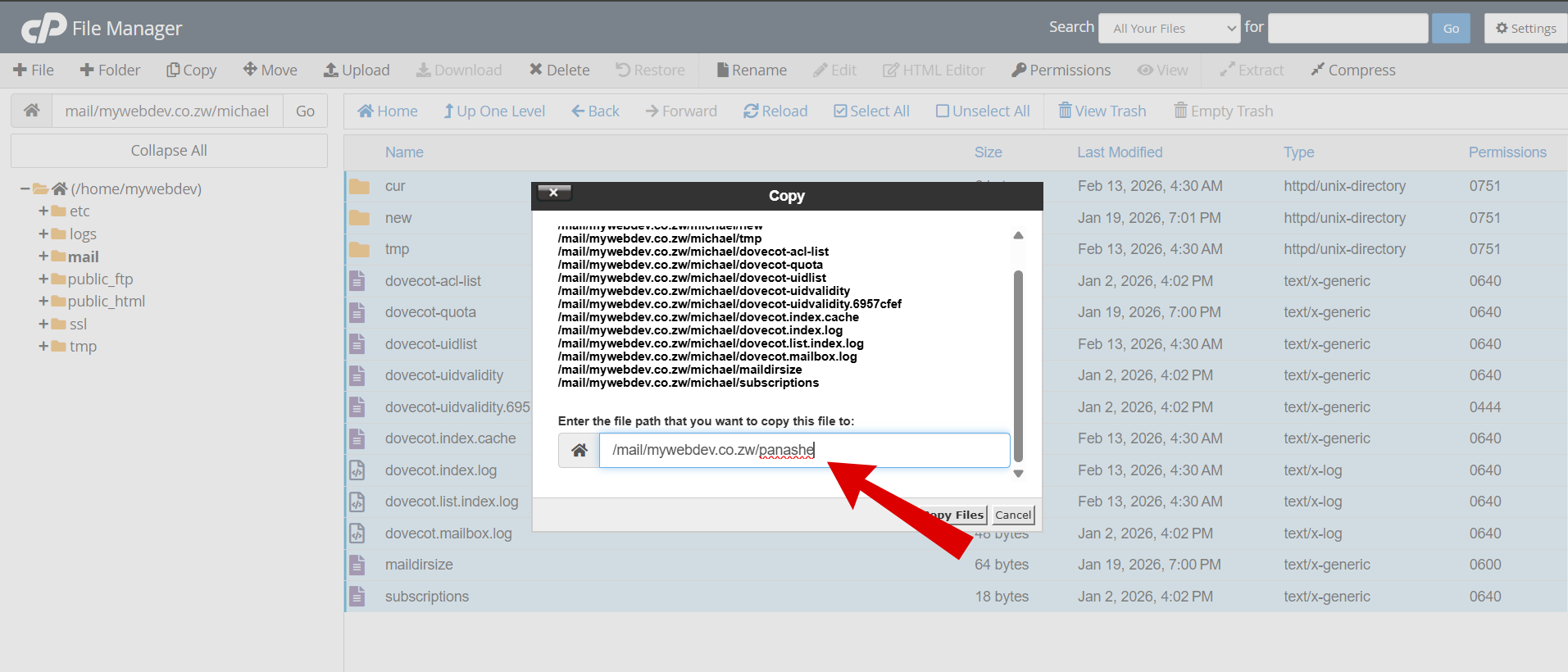
-
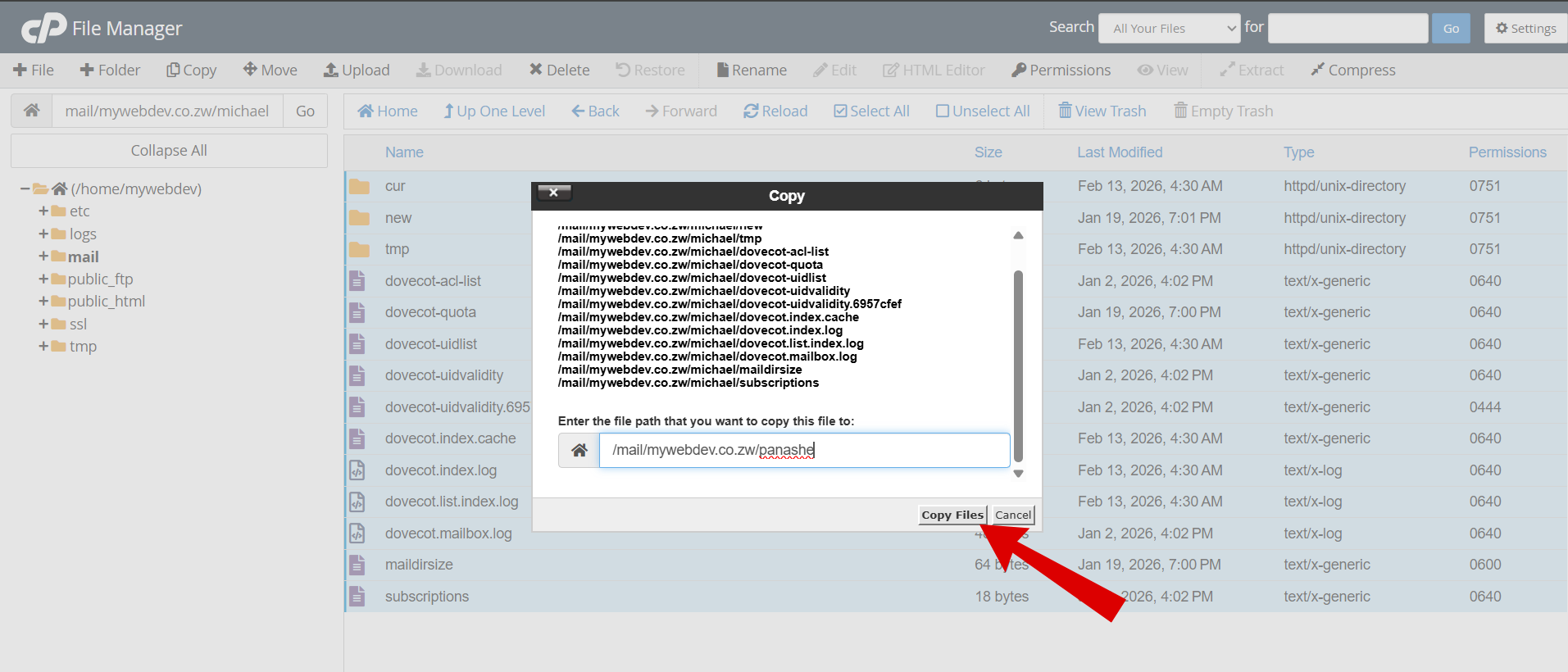
Click Copy Files
Step 6: Verify Migration
-
Go to Email Accounts
-
Click Check Email for:
-
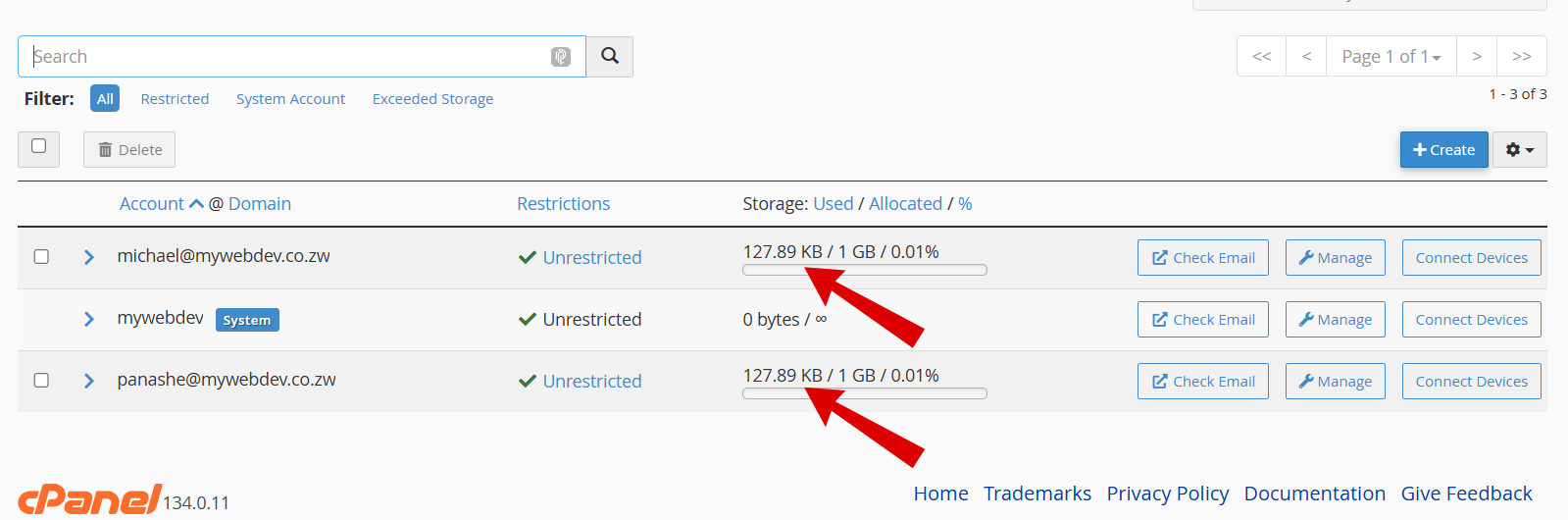
Confirm the following:
-
Mailbox size reflects expected data tallies
-
Emails are visible
-
Folder structure (Inbox, Sent, Drafts, etc.) is intact
-
Important Notes
-
Email renaming is not native in cPanel
-
This method ensures:
-
No data loss
-
Continuity of service
-
-
Permissions and ownership are handled automatically by cPanel